
How to Use Claude Code: Beginner’s Guide to Setup, Commands and Mods (2026)
A beginner’s guide to Claude Code: installation, first session, essential commands, permission modes, VS Code and the new mods feature.

Photo by <a href="https://unsplash.com/@ffz_20?utm_source=WP+Agent&utm_medium=referral">Faraaz Zuberi</a> on <a href="https://unsplash.com/?utm_source=WP+Agent&utm_medium=referral">Unsplash</a>
If you want to know how to use Claude Code, the short version is this: install it with one command, run claude inside a project folder, sign in with a paid Claude plan or an Anthropic Console account, and then describe what you want in plain English. Claude Code reads your files, proposes or makes edits, runs commands and works with Git. This beginner’s guide walks through installation on Mac, Windows and Linux, your first session, the commands worth memorising, permission modes, VS Code and the desktop app, and the new mods feature Anthropic added on 1 October 2026.

Every command and setting below was checked on 6 October 2026 against Anthropic’s official Claude Code documentation, its pricing page and the public release notes. Claude Code updates very often, so menu names and defaults can change between versions. Where something depends on your version, we say so.
What Is Claude Code?
Claude Code is Anthropic’s agentic coding tool. Unlike a chat window where you paste code back and forth, it works directly in your project: it can read the codebase, edit several files at once, run tests and shell commands, create commits and connect to other tools through the Model Context Protocol (MCP). Anthropic offers it in several places, all built on the same engine:
- Terminal (CLI): the full-featured version, started with the
claudecommand. - VS Code and Cursor: an extension with inline diffs, @-mentions and plan review.
- JetBrains IDEs: a plugin for IntelliJ IDEA, PyCharm, WebStorm and others (it needs the CLI installed too).
- Desktop app: the Code tab in the Claude app for macOS and Windows, with visual diff review and parallel sessions.
- Web and mobile: cloud sessions at claude.ai/code and in the Claude app for iOS and Android, with no local setup.
Your project’s CLAUDE.md instructions, settings and MCP servers carry across all of these surfaces, so you can start in one and continue in another.
Claude Code Pricing: Which Plan Do You Need?
Before installing, check that you have access. According to Anthropic’s pricing page, Claude Code is not included in the Free plan. You need one of the following:
| Option | Price (USD, as listed by Anthropic) | Best for |
|---|---|---|
| Pro | $20/month, or $17/month on an annual plan ($200 billed upfront) | Individuals learning Claude Code or using it a few times a week |
| Max (5x and 20x) | From $100/month | Developers who use it all day |
| Team, Standard seat | $25/month, or $20/month billed annually | Small teams that want shared admin and billing |
| Team, Premium seat | $125/month, or $100/month billed annually | Heavy users inside a team |
| Anthropic Console (API) | Pay as you go with prepaid credits | Usage-based billing and cost tracking |
The terminal, VS Code and JetBrains versions can also run through enterprise cloud providers such as Amazon Bedrock and Microsoft Foundry. Prices are quoted in US dollars; what you pay in the UK or the EU depends on local currency and VAT at checkout. For a full breakdown of every tier and usage limit, see our Claude pricing guide.
Can you use Claude Code for free? Not through an official free tier. Searches for “how to use Claude Code for free” often lead to workarounds that route the tool to other models; those are third-party setups that Anthropic does not support, so treat them with caution and never paste API keys into tools you do not trust.
How to Install Claude Code
Anthropic recommends its native installer, which also updates itself automatically in the background. Open a terminal and run the command for your system.
macOS, Linux and WSL
curl -fsSL https://claude.ai/install.sh | bashWindows (PowerShell)
irm https://claude.ai/install.ps1 | iexWindows (Command Prompt)
curl -fsSL https://claude.ai/install.cmd -o install.cmd && install.cmd && del install.cmdOn native Windows, Anthropic recommends installing Git for Windows so Claude Code can use its Bash tool; without it, Claude Code falls back to PowerShell. If you see “The token ‘&&’ is not a valid statement separator”, you are in PowerShell rather than CMD, so use the PowerShell command instead.
Package managers
- Homebrew:
brew install --cask claude-code(stable channel, usually about a week behind) orclaude-code@latest. Homebrew installs do not auto-update, so runbrew upgrade claude-codeoccasionally. - WinGet:
winget install Anthropic.ClaudeCode, updated withwinget upgrade Anthropic.ClaudeCode. - Linux: apt, dnf and apk packages are available for Debian, Fedora, RHEL and Alpine.
To confirm it worked, open a new terminal window and run claude --version. You should see a version number followed by “(Claude Code)”. If the shell says claude is not found, the install folder is not on your PATH yet; Anthropic’s troubleshooting page covers the fix.
How to Use Claude Code: Your First Session Step by Step
Step 1: Open your project and start Claude Code
cd /path/to/your/project
claude
On first launch you are asked to log in. Follow the browser prompt for a Claude subscription or Console account. If you have set the ANTHROPIC_API_KEY environment variable, Claude Code asks you to approve that key instead. You can switch accounts later by typing /login.
Step 2: Ask Claude Code to explain the project
Start with questions rather than edits. Claude Code reads files as it needs them, so you do not have to paste anything in. Good first prompts include:
- what does this project do?
- where is the main entry point?
- explain the folder structure
Step 3: Create a CLAUDE.md file
Type /init. Claude analyses the codebase and writes a CLAUDE.md file with build commands, test instructions and conventions it finds. Claude Code reads this file at the start of every session, so it is the best place for rules such as “use TypeScript strict mode” or “run npm test before committing”. Personal preferences that apply to every project go in ~/.claude/CLAUDE.md. Keep instructions short and specific; Anthropic’s docs note that concise rules are followed more consistently.
Step 4: Make your first change
Ask for something small and easy to check, such as add input validation to the registration form or there’s a bug where users can submit empty forms – fix it. Claude Code locates the relevant code, makes the change and, where tests exist, runs them. Review the diff before you move on.
Step 5: Use Git conversationally
Claude Code works directly with Git. Try what files have I changed?, create a new branch called feature/signup-validation or commit my changes with a descriptive message. Working on a branch makes it easy to throw away anything you do not like.
Essential Claude Code Commands
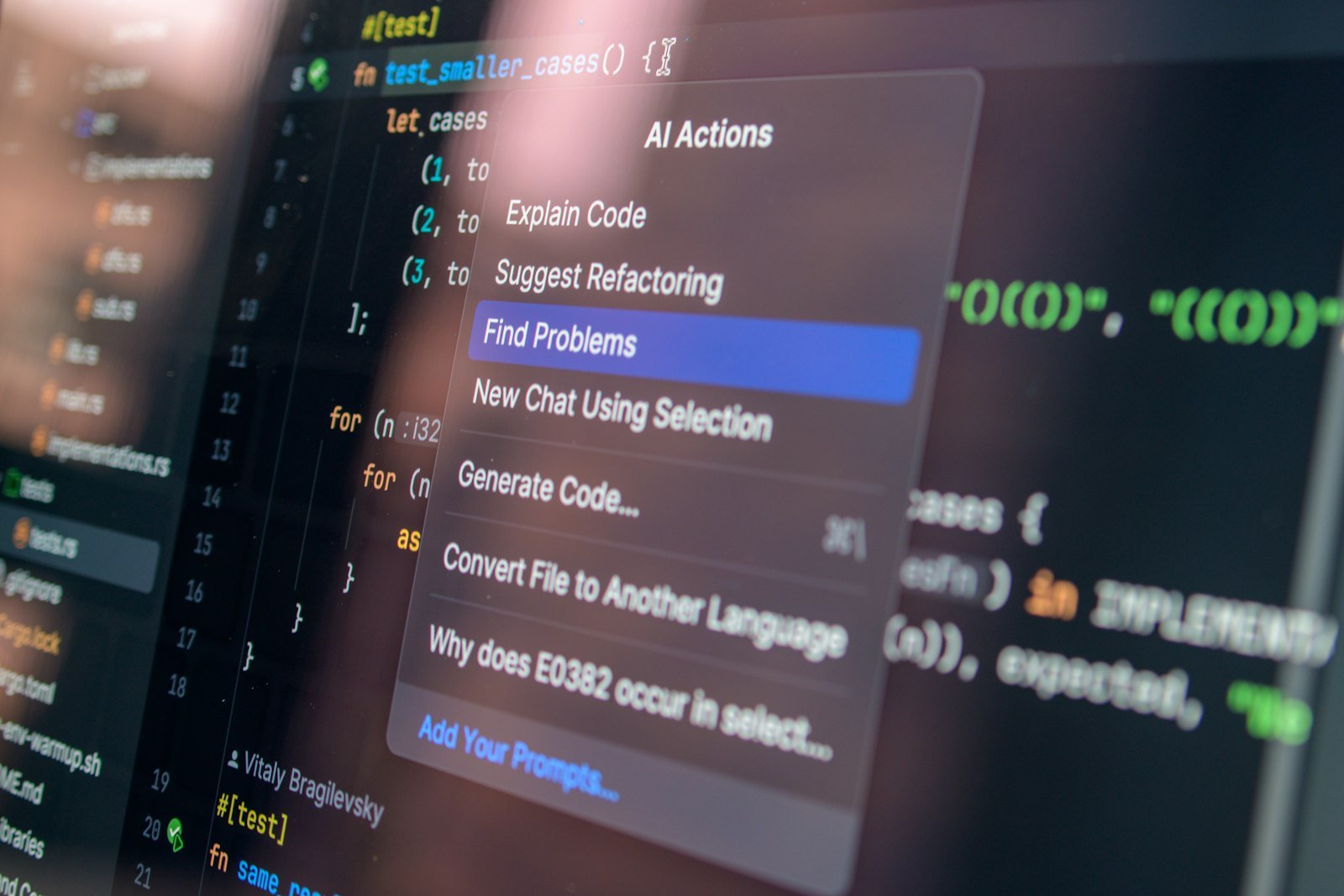
These are the commands Anthropic’s quickstart highlights for daily use.
| Command | Where | What it does |
|---|---|---|
claude |
Shell | Start an interactive session |
claude "task" |
Shell | Start a session with a first prompt |
claude -p "query" |
Shell | Run a one-off query and exit (useful in scripts) |
claude -c |
Shell | Continue the most recent conversation in this folder |
claude -r |
Shell | Pick a previous conversation to resume |
/help |
Session | Show available commands |
/init |
Session | Generate or improve CLAUDE.md |
/clear |
Session | Clear the conversation history |
/plugin |
Session | Manage plugins and mods |
/exit |
Session | Quit (or press Ctrl+D twice) |
Two shortcuts save a lot of time: type / to see every command and skill available to you, and press Shift+Tab to switch permission modes.
Permission Modes Explained
Permission modes decide what Claude Code can do without asking you first. Understanding them is the most important safety skill for beginners.
| Mode | What runs without asking | Use it for |
|---|---|---|
default (Manual) |
Reading files only | Sensitive work where you approve every action |
acceptEdits |
Reads, file edits and common file commands | Iterating on code you are reviewing closely |
plan |
Reads (plus classifier-approved commands where auto mode is available) | Exploring and planning before any changes |
auto |
Everything, with a second model reviewing actions in the background | Longer tasks with fewer interruptions |
bypassPermissions |
Everything, with no checks | Isolated containers and virtual machines only |
Since version 2.1.283, auto mode is the built-in starting mode for interactive terminal and VS Code sessions, though your own settings or your organisation can change that. If you are new, consider switching to plan mode before a large change so Claude explains its approach first, and keep bypassPermissions for throwaway environments. Sandboxing tools for coding agents, such as the one in our NVIDIA OpenShell guide, are another way to limit what an agent can touch.
Using Claude Code in VS Code, the Desktop App and the Browser
VS Code and Cursor: search for “Claude Code” in the Extensions view (Ctrl+Shift+X on Windows and Linux, Cmd+Shift+X on Mac), install it, then open the Command Palette and choose Claude Code: Open in New Tab. You get inline diffs and can @-mention files directly.
Desktop app: install the Claude app for macOS or Windows, sign in and open the Code tab. It includes Claude Code, so you do not need the CLI separately, and it requires a paid subscription. From a terminal session you can type /desktop to move your current session into the app.
Web and phone: go to claude.ai/code to run tasks in the cloud on repositories you do not have locally, or start one in the Claude mobile app and pull it into your terminal later with claude --teleport.
What Are Claude Code Mods?
Mods are the biggest recent change. Anthropic introduced them on 1 October 2026 with Claude Code 2.1.287, and follow-up releases 2.1.288 and 2.1.289 (2 and 4 October) fixed plugin, terminal and mod rendering issues. According to the official docs, a mod is a plugin made of JavaScript or TypeScript event handlers that run inside Claude Code. That lets a mod:
- draw its own panes, bands and buttons in the interface;
- restyle parts of Claude Code’s own interface, such as the spinner;
- step into a tool call, for example holding a risky command until you confirm;
- add slash commands that run your code instantly.
Mods need version 2.1.287 or later and are on by default. You install one like any plugin, with /plugin install name@marketplace in a session or claude plugin install name@marketplace in your shell. Anthropic publishes sample mods in its claude-code-playground repository, including token-weather (a context-window forecast) and blast-radius (which pauses commands such as rm -rf and shows what they would change). Some built-in features are mods too, such as the /diff pane, and an optional “You Should Know” mod runs a side agent that flags things you might miss.
Security warning from the docs: a mod is code that runs with your permissions. It can read and write your files, see your prompts, read environment variables and even approve tool calls. Mods are not sandboxed. Install them only from authors you trust, and run claude plugin validate ./some-mod first to list what a mod does. Mods draw in the terminal and the desktop app, but not in the VS Code chat panel.
Tips to Use Claude Code Effectively
- Be specific. “Fix the login bug where users see a blank screen after entering the wrong password” works far better than “fix the bug”.
- Break big jobs into steps. Number them in your prompt, or ask for a plan first in plan mode.
- Let it explore first. Ask Claude to analyse the relevant code before it edits anything.
- Keep CLAUDE.md lean. Put rules there that Claude would not discover by reading the code.
- Clear context between tasks. Use
/clearwhen you switch to unrelated work, so earlier discussion does not confuse new requests. - Review every diff. Claude Code is capable, but you remain responsible for what you commit.
- Script repetitive work.
claude -pcan run inside CI or shell pipelines, for example to review changed files for security issues.
Claude Code vs Other AI Coding Tools
Claude Code is one of several terminal-first coding agents. If you are comparing options, our DeepSeek Harness install guide covers an open-source agent that can connect to different models, and our article on Microsoft’s new Copilot features looks at GitHub Copilot’s direction. The model behind Claude Code matters too; our overview of Claude Sonnet 5.5 explains Anthropic’s current mid-tier model.
Frequently Asked Questions
Is Claude Code free?
No. Anthropic’s pricing page lists Claude Code as unavailable on the Free plan. It is included with Pro, Max, Team and Enterprise, or you can pay per use through an Anthropic Console account.
How do I use Claude Code in VS Code?
Install the “Claude Code” extension from the Extensions view, open the Command Palette and select Claude Code: Open in New Tab. You can also run claude in VS Code’s integrated terminal.
How do I use Claude Code on Windows?
Run irm https://claude.ai/install.ps1 | iex in PowerShell or use winget install Anthropic.ClaudeCode. Installing Git for Windows is recommended so Claude Code can use Bash.
Can I use Claude Code without coding experience?
Yes, for simple projects, because you give instructions in plain English. Anthropic’s docs include a terminal guide for complete beginners. You still need to understand enough to review changes, so start with small, low-risk tasks.
What is the difference between Claude Code and the Claude chat app?
The chat app answers questions and drafts code you copy across. Claude Code works inside your project, editing files, running commands and committing changes directly.
Are Claude Code mods safe?
Only as safe as their author. Mods run unsandboxed with your permissions, so install them only from trusted sources, inspect them with claude plugin validate, and use --safe-mode to start a session without your customisations.
Conclusion
Learning how to use Claude Code comes down to a few habits: install it with the official command, start in a real project with claude, generate a CLAUDE.md with /init, ask questions before asking for edits, and choose a permission mode that matches the risk of the task. Once you are comfortable, the VS Code extension, the desktop app and the new mods system let you shape Claude Code around the way you work. Check Anthropic’s release notes regularly, because Claude Code ships updates several times a week.
Sources: Claude Code overview; Claude Code quickstart; Permission modes; CLAUDE.md and memory; Mods overview; Claude pricing; Claude Code release notes (Releasebot).





4 thoughts on “How to Use Claude Code: Beginner’s Guide to Setup, Commands and Mods (2026)”