
How to Run an LLM Locally: Beginner’s Guide to Ollama, LM Studio and llama.cpp (2026)
A beginner’s guide to running large language models on your own computer: hardware needs, Ollama and LM Studio setup, llama.cpp and choosing a model size.
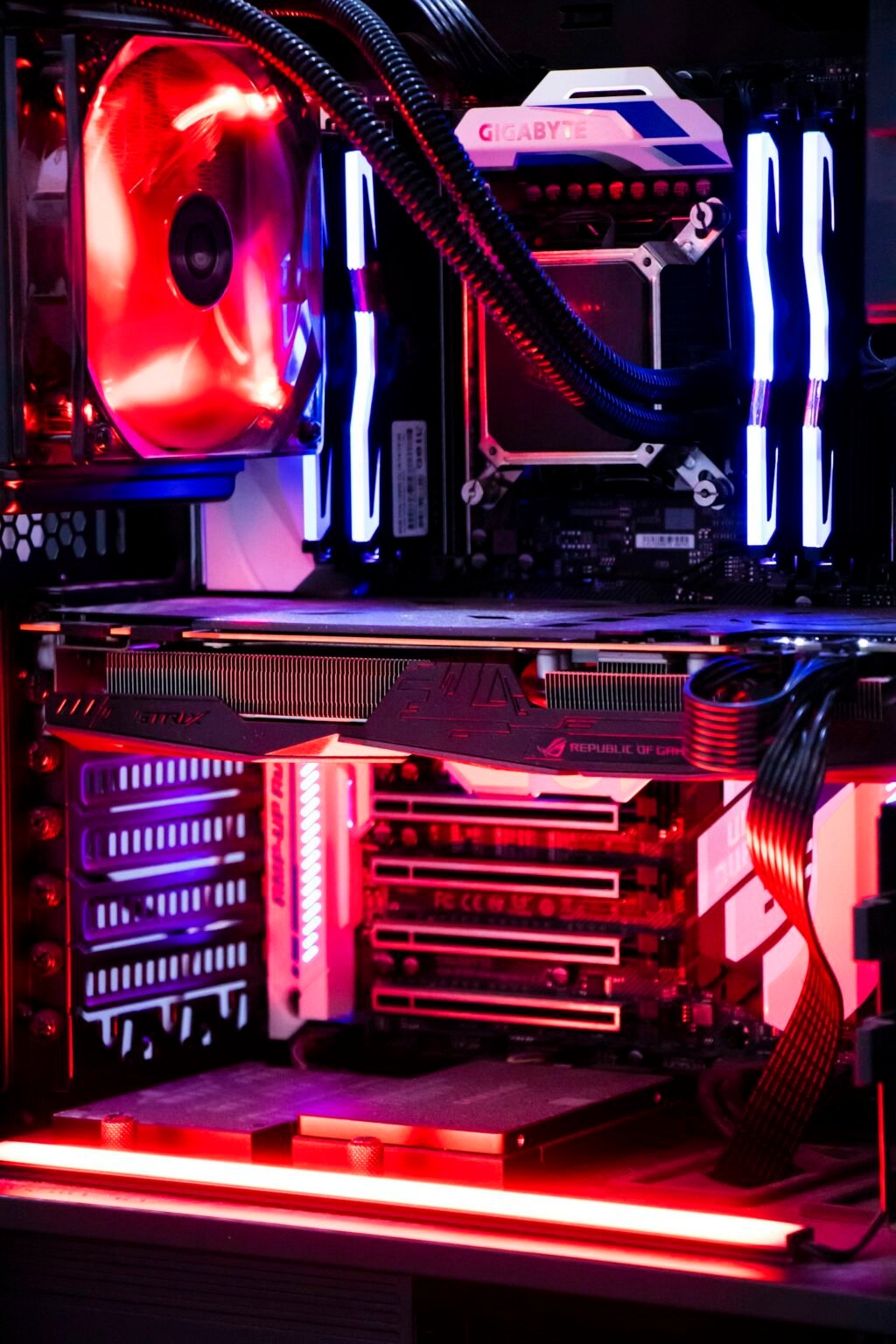
Photo by <a href="https://unsplash.com/@thesadshah?utm_source=WP+Agent&utm_medium=referral">Sadshah.</a> on <a href="https://unsplash.com/?utm_source=WP+Agent&utm_medium=referral">Unsplash</a>
Want to know how to run an LLM locally? The quickest route is to install a free app such as Ollama or LM Studio, download an open-weight model that fits your computer’s memory, and chat with it entirely on your own machine, with no subscription and no data leaving your device. This guide explains what hardware you actually need, walks through setup on Windows, Mac and Linux step by step, compares the three most popular tools, and shows how to pick a model size that will run smoothly instead of crawling.
Commands, requirements and prices below were checked on 6 October 2026 against the official Ollama, LM Studio and llama.cpp documentation. Local AI tools move quickly, so if a menu or model name has changed, the project’s own docs are the final word.
Why Run an LLM Locally?
Local AI has become far more practical in 2026. On 5 October, for example, news roundups highlighted Strata, an MIT-licensed open-source engine that reportedly runs a 125-billion-parameter Qwen mixture-of-experts model on a single consumer GPU with 12 GB of video memory, by spreading the model across GPU memory, system RAM and an SSD. The same reports note that this relies on aggressive 2–3-bit compression, and community testers flagged quality trade-offs, so treat it as a sign of where things are heading rather than a free replacement for cloud AI.
The main reasons people run models on their own hardware are:
- Privacy: prompts and documents stay on your computer, which matters for client files, medical notes or anything covered by GDPR obligations.
- No subscription: Ollama and LM Studio are free for local use; you only pay for electricity and hardware you already own.
- Offline access: once a model is downloaded, it works without an internet connection.
- Control: you choose the model, the version and the settings, and nothing changes unless you update it.
- Learning: developers can test apps against a local API before paying for cloud tokens.
The trade-off is capability. The open models that fit on a laptop are smaller than frontier cloud models, so they are best for drafting, summarising, coding help and private Q&A rather than the hardest reasoning tasks.
Hardware Requirements: What Do You Need to Run an LLM Locally?
The single most important number is memory: video memory (VRAM) on a dedicated graphics card, or unified memory on an Apple silicon Mac. The model’s weights must fit, with room left for the conversation itself.
A simple way to estimate memory
Most local models are downloaded in a compressed (“quantised”) format. At 4-bit quantisation, each parameter takes roughly half a byte, so you can estimate the weights like this:
- An 8-billion-parameter model at 4-bit ≈ 8 × 0.5 = about 4 GB of weights.
- A 14-billion-parameter model at 4-bit ≈ about 7 GB.
- A 32-billion-parameter model at 4-bit ≈ about 16 GB.
- A 70-billion-parameter model at 4-bit ≈ about 35 GB.
This is back-of-the-envelope arithmetic, not an official specification. Add a few gigabytes on top for the context window and the operating system, and expect longer conversations to need more. Each model’s download page also lists its actual file size, which is the most reliable guide.
Official minimums from LM Studio
LM Studio publishes clear system requirements that are a useful baseline for any local tool:
| Platform | LM Studio’s stated requirements |
|---|---|
| Mac | Apple silicon (M1 or newer), macOS 14 or newer; 16 GB RAM recommended, 8 GB possible with smaller models. Intel Macs are not supported. |
| Windows | x64 CPU with AVX2, or ARM (Snapdragon X Elite); 16 GB RAM recommended; at least 4 GB of dedicated VRAM recommended. |
| Linux | Ubuntu 20.04 or newer (AppImage); x64 with AVX2 or ARM64. |
Can you run an LLM locally without a GPU?
Yes. All three tools in this guide can run models on the CPU alone, but responses are much slower. Without a GPU, stick to small models (roughly 1–4 billion parameters) and short prompts. Apple silicon Macs are a special case: their unified memory is shared between CPU and GPU, which is why a MacBook with 16 GB or more is one of the easiest machines for local AI.
What about the biggest open models?
The largest open-weight releases are far beyond home hardware. Activepieces, for example, reports that self-hosting DeepSeek V4.1 Flash, a 552-billion-parameter mixture-of-experts model, needs around 614 GB of GPU memory, the territory of an eight-GPU data-centre server. For models of that size, the realistic options are a cloud API, such as the official DeepSeek API, or a smaller distilled version.

The Best Tools to Run LLMs Locally
| Tool | Best for | Interface | Cost for local use | Licence |
|---|---|---|---|---|
| Ollama | Simple setup, developers, connecting to other apps | Command line plus local API | Free | MIT |
| LM Studio | Beginners who want a chat window | Desktop app | Free for personal use | See LM Studio’s terms |
| llama.cpp | Maximum control and performance tuning | Command line and server | Free | MIT |
Ollama and LM Studio both offer optional paid cloud plans (Ollama Pro is listed at $20 a month and LM Studio’s Bionic+ at $20 a month), but you do not need them to run models on your own computer.
How to Run an LLM Locally with Ollama (Step by Step)
Ollama is a popular starting point because it handles downloading, compression formats and GPU acceleration for you.
Step 1: Install Ollama
On macOS or Linux, open a terminal and run:
curl -fsSL https://ollama.com/install.sh | shOn Windows, open PowerShell and run:
irm https://ollama.com/install.ps1 | iexYou can also download a normal installer from ollama.com, or use the official ollama/ollama Docker image.
Step 2: Download and run a model
Ollama’s documentation uses Google’s Gemma 4 as its example:
ollama run gemma4The first run downloads the model; after that, it loads from disk and opens a chat prompt in your terminal. Browse ollama.com/library to see other families, including Gemma, Llama, Qwen and DeepSeek models, each with several sizes. Pick a size that fits the memory estimate above.
Step 3: Learn the essential commands
| Command | What it does |
|---|---|
ollama run <model> |
Download (if needed) and chat with a model |
ollama pull <model> |
Download a model without starting a chat |
ollama ls |
List the models you have installed |
ollama ps |
Show which models are currently loaded |
ollama stop <model> |
Unload a running model to free memory |
ollama rm <model> |
Delete a model and reclaim disk space |
ollama create |
Build a custom model from a Modelfile |
Step 4: Use the local API
Ollama runs a server on localhost:11434, so other apps and scripts can use your local model. The same server can also create embeddings for private document search; our roundup of the best embedding models explains which ones to try. A basic chat request looks like this:
curl http://localhost:11434/api/chat -d '{
  "model": "gemma4",
  "messages": [{"role": "user", "content": "Summarise GDPR in three bullet points"}],
  "stream": false
}'
Ollama also has a launch command for connecting integrations such as VS Code and coding agents. If you use a terminal coding assistant, our Claude Code beginner’s guide explains how those agents work, and our DeepSeek Harness guide covers an open-source agent that can be pointed at local models.
How to Run an LLM Locally with LM Studio (No Command Line)

If you prefer clicking to typing commands, LM Studio is the friendliest option. According to its website, it downloads models directly inside the app and uses MLX (on Apple silicon) and llama.cpp under the hood.
- Download LM Studio from lmstudio.ai for Mac, Windows or Linux and check your machine meets the requirements in the table above.
- Search for a model inside the app. Start with a small instruction-tuned model in the 3–8 billion parameter range.
- Choose a quantisation. A 4-bit version is the usual balance of quality and size; pick a smaller file if your memory is tight.
- Load the model and chat. Watch the memory indicator; if your computer slows to a crawl, the model is too big.
- Explore the extras, such as LM Studio’s local server mode, if you want other apps on your computer to use the model.
LM Studio’s free tier covers local models for personal use; check its terms if you plan to use it inside a business.
How to Run an LLM Locally with llama.cpp (Advanced)
llama.cpp is the open-source engine that powers many local AI tools. Using it directly gives you the most control over performance. It supports Apple Metal, NVIDIA CUDA, AMD HIP, Vulkan and Intel SYCL, and quantisation from 1.5-bit up to 8-bit.
The project’s README shows a one-line installer, pre-built binaries and Docker images. Once installed, you can download and run a model from Hugging Face in one command, or start an OpenAI-compatible server:
llama cli -hf ggml-org/Qwen3.5-0.8B-GGUF
llama serve -hf ggml-org/Qwen3.5-0.8B-GGUF
The example uses a tiny 0.8-billion-parameter model, which makes it a good first test even on modest hardware. Command names have changed between versions, so check the README for your release.
Which Model Should You Run Locally?
| Your machine | Sensible starting size (4-bit) | Good for |
|---|---|---|
| 8 GB RAM, no GPU | 1–4 billion parameters | Short answers, simple summaries, testing |
| 16 GB Mac or a GPU with 8 GB VRAM | 7–8 billion parameters | Everyday writing, Q&A, light coding help |
| 32 GB Mac or a GPU with 16 GB VRAM | 14–32 billion parameters | Stronger reasoning and coding |
| 64 GB+ Mac or multiple GPUs | 70 billion parameters | Near-cloud quality for many tasks |
These ranges follow from the memory arithmetic earlier and are starting points, not guarantees. Always check the model’s licence too: open-weight models come with different terms for commercial use. If you are interested in European models, our guide to Mistral Vibe covers the French company behind several popular open-weight releases. Its newest, Mistral Large 4, is far too big for home hardware; see our Mistral Large 4 overview.
Tips for Better Performance
- Close memory-hungry apps, especially browsers with many tabs, before loading a large model.
- Use your GPU. Keep graphics drivers up to date and check the tool’s settings or logs to confirm it is using your graphics card rather than falling back to the CPU.
- Shorten the context. Very long chats use more memory; start a new conversation when the topic changes.
- Try a smaller quantisation before giving up on a model that almost fits.
- Keep models on an SSD. Loading from a spinning hard drive is painfully slow.
Image generation has its own requirements. If you also want to create images locally, our ComfyUI guide covers GPU needs for image models.
Is Running an LLM Locally Safe?
Running a model locally keeps your prompts off third-party servers, but it is not automatically risk-free. Download models only from their official pages or trusted Hugging Face accounts, keep your tools updated, and be careful about giving a local model’s agent access to your files or the internet. Tools such as the one in our NVIDIA OpenShell guide can sandbox AI agents so they only reach what you allow.
Frequently Asked Questions
Is it free to run an LLM locally?
The software can be. Ollama, llama.cpp and LM Studio’s free tier let you run models locally at no cost. Your costs are the hardware and electricity.
How do I run an LLM locally on Windows?
Install Ollama with irm https://ollama.com/install.ps1 | iex in PowerShell, or download LM Studio. A PC with 16 GB of RAM and a GPU with at least 4 GB of VRAM is LM Studio’s recommended baseline.
How do I run an LLM locally on a Mac?
Use an Apple silicon Mac (M1 or newer). Install Ollama with its one-line script or download LM Studio, then start with a 7–8 billion parameter model if you have 16 GB of memory.
How much RAM do I need to run an LLM locally?
Roughly half a gigabyte per billion parameters at 4-bit, plus a few gigabytes of headroom. A 16 GB machine comfortably handles models of about 7–8 billion parameters.
Can a local LLM work offline?
Yes. Once the model is downloaded, Ollama, LM Studio and llama.cpp can run without an internet connection.
Is a local LLM as good as ChatGPT or Claude?
Generally not for the hardest tasks. Small local models are capable for everyday writing and coding help, but frontier cloud models remain stronger at complex reasoning.
Conclusion
Learning how to run an LLM locally is easier in 2026 than ever. Start by checking your memory, install Ollama or LM Studio, and run a small model before moving up in size. Use the local API to connect the model to your own tools, and keep an eye on projects such as Strata that are pushing larger models onto consumer hardware. For private, offline and subscription-free AI, a local model is now a realistic everyday tool.
Sources: Ollama on GitHub; Ollama CLI reference; Ollama pricing; LM Studio system requirements; LM Studio pricing; llama.cpp on GitHub; ExplainX AI news, 5 October 2026 (Strata); AI Weekly, 5 October 2026; Activepieces on DeepSeek V4.1 Flash.





2 thoughts on “How to Run an LLM Locally: Beginner’s Guide to Ollama, LM Studio and llama.cpp (2026)”