
How to Turn Off Apple Intelligence on iPhone, iPad and Mac (iOS 27 and macOS 27)
iOS 27 and macOS 27 removed Apple Intelligence’s master switch. Here is how to block its features, stop summaries, keep Siri and what happens to storage.
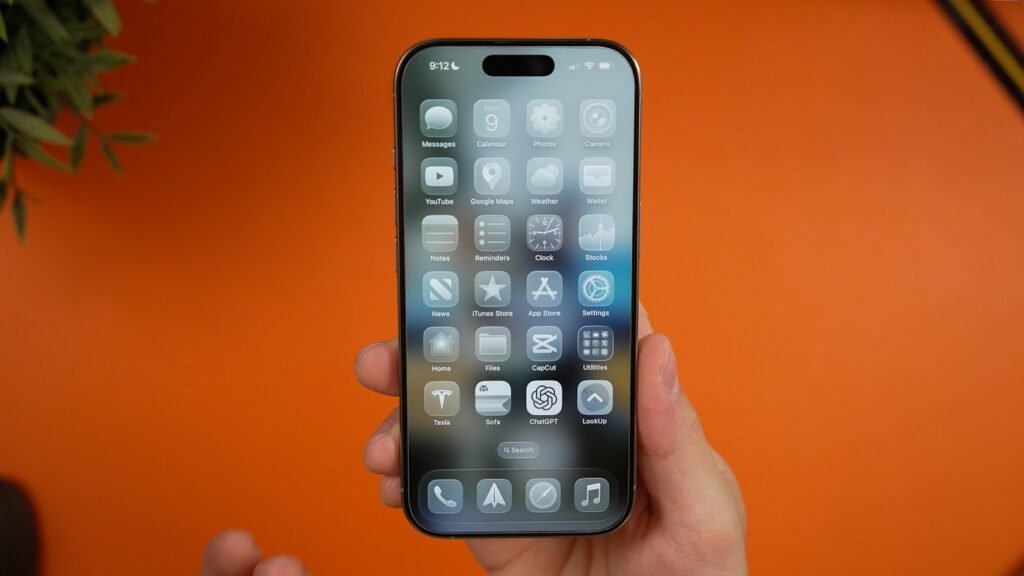
Photo by <a href="https://unsplash.com/@rmrdnl?utm_source=WP+Agent&utm_medium=referral">Daniel Romero</a> on <a href="https://unsplash.com/?utm_source=WP+Agent&utm_medium=referral">Unsplash</a>
If you are wondering how to turn off Apple Intelligence, the answer depends on which software you are running. On iOS 26, iPadOS 26 and macOS 26 or earlier, there is still a single switch that disables Apple Intelligence and removes its on-device models. On iOS 27, iPadOS 27 and macOS 27, Apple removed that master switch, so you now have to turn features off one at a time, mostly through Screen Time restrictions and a few app-specific settings. This guide walks through every route, explains what each one does and does not do, and covers the storage, battery and Siri questions people ask most.
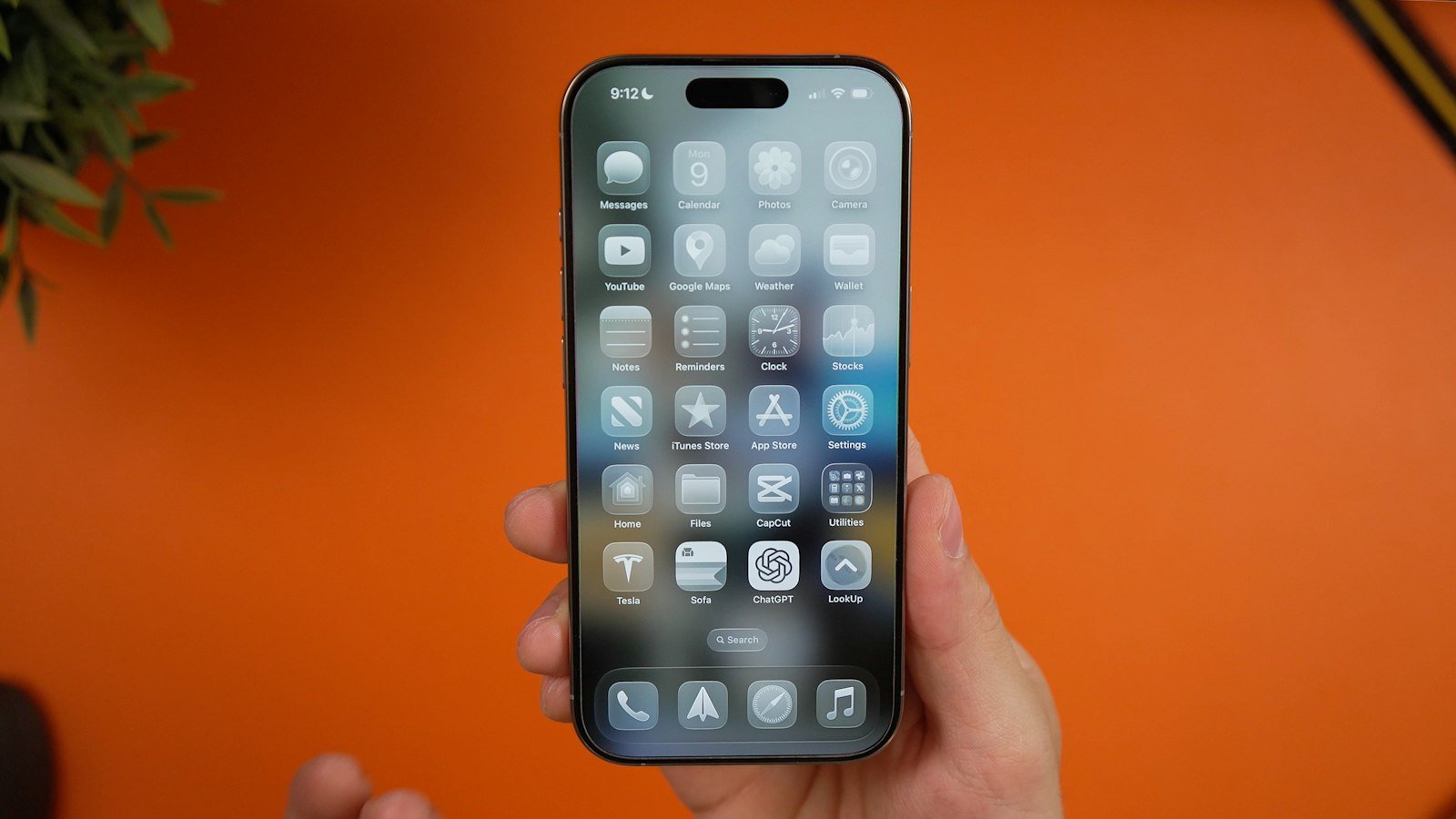
The steps below were checked on 5 October 2026 against recent reporting from Apfelpatient, UNILAD Tech, MacRumors, GBHackers and AI Weekly, plus the RemoveMacAI project page on GitHub. Apple changes menu names between point releases, so if a label on your device differs slightly, look for the closest match in the same section.
Quick Answer: Can You Still Turn Off Apple Intelligence?
Yes, but not with one tap on the newest software. Here is the short version:
| Your software | Is there a master switch? | Best method | Frees storage? |
|---|---|---|---|
| iOS 26 / iPadOS 26 or earlier | Yes | Settings → Apple Intelligence & Siri → turn off Apple Intelligence | Yes, the models are removed |
| iOS 27 / iPadOS 27 | No | Screen Time restrictions plus Mail and Messages summary toggles | No, according to current reports |
| macOS 26 or earlier | Yes | System Settings → Apple Intelligence & Siri → turn off | Yes |
| macOS 27 | No | Screen Time restrictions, or the third-party RemoveMacAI tool | Only with RemoveMacAI (about 10–12 GB reported) |
The key thing to understand is the difference between blocking features and removing the models. Blocking stops Writing Tools, Image Playground, summaries and similar features from appearing. Removing the models is what actually gives you storage back, and on the 27 releases Apple no longer offers that option in Settings.
Why Apple Removed the Master Switch in iOS 27
According to Apfelpatient’s iOS 27 guide, the Settings section that used to be called “Apple Intelligence & Siri” is now simply called “Siri”, and the single on/off toggle for Apple Intelligence is gone. Apple has not published a detailed explanation, but the change fits a broader pattern: Apple Intelligence is now woven into Siri, Spotlight, Mail, Messages, Photos and system-wide text fields, so the company treats it as part of the operating system rather than an optional add-on.
That integration is also why turning it off is harder. Some features, such as smarter Spotlight results on the Mac, now run under processes Apple labels as Siri, so a “Siri” process may still appear even after you have blocked the AI features you care about.
How to Turn Off Apple Intelligence on iOS 26 and Earlier
If you have not updated to iOS 27, or you are on an older iPhone or iPad that stays on iOS 26, the process is quick:
- Open Settings.
- Tap Apple Intelligence & Siri.
- Turn off the Apple Intelligence toggle and confirm.
This disables the features across the device and, according to Apfelpatient, also removes the downloaded models, which frees the storage they used. If you rely on this clean off switch, it is worth thinking carefully before updating to iOS 27, because the option does not carry over.
How to Turn Off Apple Intelligence on iOS 27 and iPadOS 27
On the 27 releases, you build your own “off switch” from several settings. The most complete route is Screen Time, followed by app-specific toggles for summaries.
Step 1: Block AI features with Screen Time
Both Apfelpatient and UNILAD Tech describe the same Screen Time path. Exact wording may vary slightly on iPad:
- Open Settings → Screen Time. Turn Screen Time on if it is not already enabled.
- Tap Content & Privacy Restrictions and switch it on.
- Find the Intelligence & Siri section.
- Set Image Creation, Writing Tools and Intelligence Extensions to Don’t Allow.
“Image Creation” covers Image Playground and Genmoji. “Writing Tools” removes the rewrite, proofread and summarise options from text fields. “Intelligence Extensions” blocks third-party model integrations, including the ChatGPT extension. If you have used that extension and want to understand what an OpenAI account costs separately, our ChatGPT pricing guide breaks down the plans.
Using Screen Time this way has one practical side effect: if you set a Screen Time passcode, anyone without it cannot undo the restrictions. That is useful on a child’s device, but make sure you remember the code on your own phone.
Step 2: Turn off notification and email summaries
Summaries are the feature people most often want gone, and they have their own switches. According to Apfelpatient:
- Mail: Settings → Mail → turn off Preview Summary.
- Messages: Settings → Messages → turn off Summary.
If you see summarised notifications from other apps, check the Notifications section of Settings for a summaries option and turn it off for the apps you choose. Doing this per app lets you keep summaries for, say, a busy group chat while switching them off for work email.
Step 3: Decide what to do about Siri
A common search is how to turn off Apple Intelligence but keep Siri. On iOS 27 that is effectively the default outcome of the Screen Time method: you block Writing Tools, image creation and extensions, while Siri itself keeps working for timers, calls and basic commands. If you want Siri gone as well, UNILAD Tech notes there is also an option to turn off Siri in the same area. Bear in mind that switching Siri off may affect features you still use, such as voice shortcuts in the car.
Does Turning Off Apple Intelligence Save Space?
This is the part that surprises most people. On iOS 27, the Screen Time method hides and blocks features, but UNILAD Tech reports that it does not delete the underlying model data, so the storage stays allocated. The same report cites figures of roughly 13.81 GB on an iPhone 17 and up to around 20 GB on Pro models, based on user reports rather than an official Apple figure. Apfelpatient notes that Apple lists 7 GB of free storage as a requirement for Apple Intelligence, which is the minimum needed to enable it, not the total it may occupy over time.
In practical terms:
- iOS 26 and earlier: turning off the master switch removes the models and frees the space.
- iOS 27: there is currently no supported way in Settings to remove the models. Blocking features improves the experience but should not be expected to free storage.
- macOS 27: a third-party tool can remove the models (see below), but it comes with caveats.
If you are tight on space, the usual iPhone housekeeping still applies: offload unused apps, clear old message attachments and move photos to cloud storage. These steps will usually recover more space more safely than trying to work around Apple’s model downloads.
Does Turning Off Apple Intelligence Save Battery?
There is no official Apple figure on battery savings, and we have not seen a reliable independent measurement either. Most Apple Intelligence tasks run only when triggered, such as when you ask for a rewrite or a summary is generated for incoming notifications. Disabling summaries reduces some background processing, so a small benefit is plausible, but you should not expect a dramatic difference. If battery life is your main concern, Settings → Battery will show you which apps and services actually use the most power.
How to Turn Off Apple Intelligence on Mac
The Mac follows the same pattern as iPhone. On macOS 26 and earlier, open System Settings → Apple Intelligence & Siri and turn Apple Intelligence off. On macOS 27, Apple also removed the wholesale toggle, so you have two options.
Option 1: Screen Time on macOS 27
Open System Settings → Screen Time → Content & Privacy and look for the Intelligence & Siri restrictions, then set the features you do not want to Don’t Allow. This mirrors the iPhone approach: features are blocked, but the models stay on disk.
Option 2: RemoveMacAI (third-party, macOS 27 only)
On 5 October 2026, MacRumors reported on RemoveMacAI, an open-source tool by developer Om Lahore that turns off Apple Intelligence on macOS 27 and removes its models. Here is what the coverage and project description say it does:
- Installs a configuration profile that disables Apple Intelligence features and the service that manages the model assets, then removes the downloaded models.
- Redirects attempts to re-download the models to a closed local port, so they do not quietly come back.
- Frees roughly 10–12 GB of disk space, according to MacRumors and AI Weekly.
- Does not require turning off System Integrity Protection (SIP).
- Disables Siri AI features, Writing Tools, Genmoji, Image Playground, the ChatGPT integration, summaries, smart replies, predictions and Photos editing tools. AI Weekly adds that Xcode’s predictive code completion and natural-language Calendar editing are also affected. Dictation still works.
- Is reversible: a revert command removes the profile and lets macOS download the models again.
GBHackers reports that it is MIT-licensed, installs through Homebrew or a one-line installer that checks a SHA-256 hash, and offers an interactive mode, a revert command and a --dry-run option to preview changes. It needs an Apple silicon Mac, admin rights and macOS 27; the developer lists macOS 27.0 and 27.0.1 as tested, and macOS 26 or earlier is not supported because those versions still have Apple’s own toggle.
Important caveats. MacRumors stated it is not endorsing the tool. Its reporting also notes that the configuration keys it relies on were deprecated in macOS 26.4 and, while they still work in macOS 27.0.1, a future update could break the method. Any tool that changes system configuration carries some risk, so read the project’s documentation, run the dry-run option first, make a Time Machine backup and avoid it entirely on a managed work Mac without your IT team’s approval.
Which Method Should You Use?
| Goal | Recommended approach |
|---|---|
| Stop email and notification summaries only | Mail Preview Summary and Messages Summary toggles |
| Remove Writing Tools and image generation but keep Siri | Screen Time → Intelligence & Siri → Don’t Allow |
| Block ChatGPT and other extensions | Screen Time → Intelligence Extensions → Don’t Allow |
| Get storage back on iPhone | Stay on iOS 26 and use the master switch; no supported option on iOS 27 yet |
| Get storage back on a macOS 27 Mac | RemoveMacAI, with a backup and an understanding of the risks |
| Lock settings on a child’s device | Screen Time restrictions with a passcode |
Turning Apple Intelligence Back On
Every method in this guide can be undone. On iOS 26 and macOS 26, switch the master toggle back on and the models will download again over Wi-Fi. On the 27 releases, set the Screen Time restrictions back to Allow and turn the Mail and Messages summary toggles back on. For RemoveMacAI, run its revert command and macOS will re-download the models. Availability also depends on your device’s language and region settings, so if a feature does not return, check that your Siri language is one Apple supports for Apple Intelligence.
Alternatives If You Still Want Some AI Help
Turning off Apple Intelligence does not mean giving up AI tools altogether. Many people prefer to choose specific apps for specific jobs rather than have AI built into every text field. If you want help with research and notes on your own documents, our NotebookLM guide shows how a source-grounded assistant works. If you transcribe meetings or interviews, our roundup of the best AI transcription software compares dedicated options. For a wider view, see our list of AI tools for work and productivity, and for a look at how another platform handles reusable AI workflows, read our explainer on Gemini Skills in Google Workspace.
Frequently Asked Questions
Can you turn off Apple Intelligence in iOS 27?
Not with a single switch. You can block most features through Screen Time’s Intelligence & Siri restrictions and turn off summaries in Mail and Messages, but iOS 27 has no master toggle and, according to current reporting, no supported way to delete the models.
Will turning off Apple Intelligence free up storage?
On iOS 26, iPadOS 26 and macOS 26 or earlier, yes: the master switch removes the models. On iOS 27 the Screen Time method does not free storage. On macOS 27, the third-party RemoveMacAI tool is reported to free about 10–12 GB.
How do I turn off Apple Intelligence but keep Siri?
On iOS 27, use Screen Time to set Writing Tools, Image Creation and Intelligence Extensions to Don’t Allow. Siri keeps working for standard voice commands unless you also choose to turn Siri off.
How do I turn off Apple Intelligence notification summaries?
Go to Settings → Mail and turn off Preview Summary, and Settings → Messages and turn off Summary. Check Settings → Notifications for summary options for other apps.
Is RemoveMacAI safe?
It is open source, does not require disabling SIP and can be reverted, according to the project and the coverage cited here. However, it is not an Apple tool, MacRumors did not endorse it, and it relies on deprecated configuration keys that could stop working after an update. Back up your Mac and use the dry-run mode first.
Does turning off Apple Intelligence save battery?
There is no official data. Disabling summaries may reduce some background work, but any battery gain is likely to be small. Check Settings → Battery to see what is actually using power.
Conclusion
Knowing how to turn off Apple Intelligence now depends on your software version. On iOS 26 and macOS 26 or earlier, one switch still does the job and frees storage. On iOS 27, iPadOS 27 and macOS 27, you need to combine Screen Time restrictions with the Mail and Messages summary toggles, and you should not expect storage back on iPhone. Mac users on macOS 27 who want their disk space back have a third-party option in RemoveMacAI, but it is unofficial and could break in a future update. Start with the least invasive change that solves your problem, and revisit your settings after each major Apple update, because menu names and options keep shifting.
Sources: Apfelpatient – How to disable Apple Intelligence on iOS 27; UNILAD Tech – Turning off Apple Intelligence in iOS 27; MacRumors – Apple Intelligence removal tool; GBHackers – RemoveMacAI; AI Weekly – RemoveMacAI frees 12 GB; RemoveMacAI on GitHub.





3 thoughts on “How to Turn Off Apple Intelligence on iPhone, iPad and Mac (iOS 27 and macOS 27)”