
How to Use Qwen-Image 2.1 and Turbo: Run Alibaba’s Image Model in ComfyUI or Python (2026 Guide)
A step-by-step guide to Qwen-Image 2.1 and its 8-step Turbo checkpoint: try it online, run it in ComfyUI or Python, hardware needs and the research-only licence.
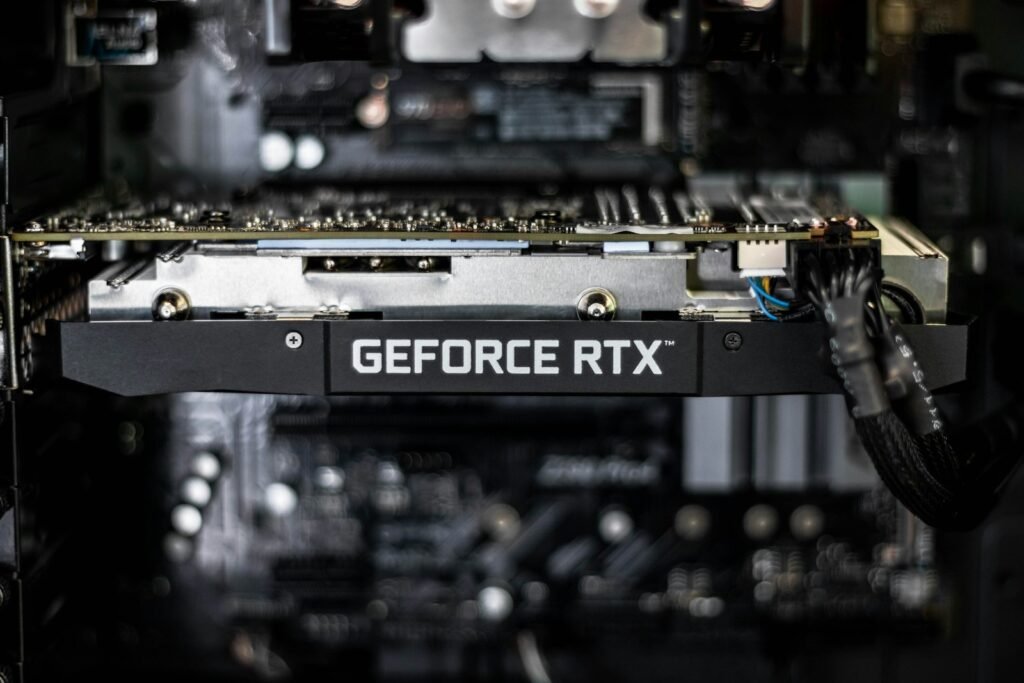
Photo by <a href="https://unsplash.com/@christianw?utm_source=WP+Agent&utm_medium=referral">Christian Wiediger</a> on <a href="https://unsplash.com/?utm_source=WP+Agent&utm_medium=referral">Unsplash</a>
Qwen-Image 2.1 is a new open-weight image model from Alibaba. It generates native 2K images, edits photos using up to ten reference images and can create transparent PNGs. In October 2026, the Qwen team added Qwen-Image-2.1-Turbo (MarkTechPost reported the release on 9 October), a faster checkpoint that needs only eight denoising steps instead of the base model’s default of 40. This guide explains what the models can do and the licence you must respect, then shows three ways to use them: online, in ComfyUI and in Python with Diffusers.
Commands, file names and settings below were checked on 11 October 2026 against the official Hugging Face model cards, the licence file and ComfyUI’s documentation. This is a new release and the tools around it are changing quickly. In particular, the Python route currently needs a development build of Diffusers, so expect some steps to change.
What Is Qwen-Image 2.1?
Qwen-Image 2.1 is a text-to-image and image-editing model from Alibaba’s Qwen team. According to the model cards and MarkTechPost’s summary of the release:
- The image generator has 7 billion parameters, paired with a Qwen3-VL 8B model that reads your instructions and reference images.
- Its VAE handles RGBA, so it can create transparent images and edit transparent layers natively.
- Output is native 2K, from 2048 × 2048 for squares to 2752 × 1536 for 16:9.
- Editing supports up to 10 reference images. You can mark the area to change with circles, painted annotations or masks.
- The team highlights improved typography, posters, UI layouts and preserving people’s and products’ identity during edits.
Qwen-Image 2.1 vs Turbo
| Qwen-Image 2.1 | Qwen-Image-2.1-Turbo | |
|---|---|---|
| Hugging Face repository | Qwen/Qwen-Image-2.1 | Qwen/Qwen-Image-2.1-Turbo |
| Default denoising steps | 40 | 8 |
| Architecture | 7B visual generator | Same 7B architecture |
| Output and editing features | 2K, editing, transparency | Same feature set |
| Licence | Qwen Research License | Qwen Research License |
| Best for | Highest quality, fine detail | Fast iteration and drafts |
Fewer steps means faster images on the same hardware. Qwen has not published a Turbo-specific quality benchmark, so if detail matters, compare both models on your own prompts.
Important: Check the Licence Before You Start
Both checkpoints use the Qwen Research License Agreement, not a permissive open-source licence. Its key terms are:
- Use is permitted for non-commercial purposes only, which the licence defines as research or evaluation.
- Commercial use needs a separate licence from Alibaba; the licence directs requests to model-business@notice.qwencloud.com.
- If you use the model or its outputs to build or improve an AI model that you make available, you must display “Built with Qwen” or “Improved using Qwen”.
- The agreement is governed by Chinese law, with disputes heard in Hangzhou.
In practice, you can experiment, learn and evaluate freely, but do not use Qwen-Image 2.1 images for client work, products or advertising without permission. If you need commercial images today, see our guide to Midjourney alternatives for tools with clearer commercial terms.
Hardware Requirements
Qwen has not published an official VRAM minimum. What we know:
- The reference code runs in BF16 on NVIDIA CUDA GPUs, and the Diffusers example notes that Apple’s
mpsbackend can be used on Macs. - MarkTechPost cites Unsloth’s estimates for the base model of about 11 GB of VRAM with GGUF quantisation and about 24 GB with INT8 or FP8. These are third-party estimates, not official figures.
- ComfyUI’s templates use INT8 model files to reduce memory use, and its KV-cache settings can move the cache to system RAM.
- Diffusers offers
enable_model_cpu_offload(), which trades speed for lower GPU memory.
If your computer cannot run it, use one of the online options below. If you are new to running AI locally, our guide on how to run an LLM locally explains GPUs, VRAM and quantisation in plain English.
Method 1: Try Qwen-Image 2.1 Online
The quickest way to test the model is with no installation:
- Hugging Face Space: open the official demo at huggingface.co/spaces/Qwen/Qwen-Image-2.1, type a prompt and generate. Free Spaces can have queues.
- ModelScope: Alibaba’s model hub hosts the models and demos too.
- Comfy Cloud: ComfyUI’s Qwen-Image 2.1 templates include a “Run on Comfy Cloud” option that runs in your browser.
- Alibaba Cloud Model Studio API: MarkTechPost reports hosted pricing of about CNY 0.1 per image for
qwen-image-2.1-turboand CNY 0.25 forqwen-image-2.1-pro. Check Model Studio’s terms for your region before building on it.
Method 2: Use Qwen-Image 2.1 in ComfyUI
ComfyUI has official templates for Qwen-Image 2.1. If you have never used it, start with our ComfyUI beginner’s guide, then follow these steps.
Step 1: Update ComfyUI
Update to the latest version. ComfyUI’s documentation says that if nodes are missing from the workflow, you may need the Nightly version, or some nodes may have failed to import at startup.
Step 2: Load a template
Open the Workflow Templates library and search for “Qwen-Image-2.1”. There are three templates:
image_qwen_image_2_1_t2ifor text to imageimage_qwen_image_2_1_image_editfor image editingimage_qwen_image_2_1_background_removalfor removing backgrounds
Step 3: Download the model files
Place the files in these folders inside your ComfyUI installation:
| Folder | File |
|---|---|
models/text_encoders/ |
qwen3vl_8b_int8_convrot.safetensors (or the larger qwen3vl_8b_bf16.safetensors) |
models/diffusion_models/ |
qwen_image_2.1_int8_convrot.safetensors (or qwen_image_2.1_bf16.safetensors) |
models/vae/ |
qwen_image_2.1_vae_bf16.safetensors |
The templates use the INT8 files, which need less memory. Two optional prompt-enhancement encoders are only needed if you switch on the refine_prompt setting.
Step 4: Generate an image
In the text-to-image template, write your prompt and choose an aspect ratio and megapixel target in the Resolution Selector node; about 4 MP gives a 2048 × 2048 square. The templates use 25 steps, CFG 1, and the euler sampler with the simple scheduler. ComfyUI’s notes say that at CFG 1 the negative prompt has no effect, that values of 5 or more degrade quality, and that targets well above 2K reduce how closely the image follows your prompt.
Step 5: Edit an image
In the edit template, upload your main image as image_1 and any references to the other Load Image nodes. Refer to them in your prompt as <image1>, <image2> and so on. To change only one area, paint over it with the Mask Editor’s pen and mention that colour in your prompt.
ComfyUI’s documentation does not yet mention the Turbo checkpoint. Community GGUF versions of Turbo exist on Hugging Face, but they are unofficial, so check each repository’s notes before use.
Method 3: Run Qwen-Image 2.1 Turbo in Python with Diffusers
This route suits developers who want to script or batch images. The model card requires a development build of Diffusers, because the pipeline relies on a recent change for its sampling schedule.
Step 1: Install the libraries
pip install git+https://github.com/huggingface/diffusers.git
pip install "transformers>=5.17.0" accelerate pillow
You also need a PyTorch build that supports your GPU. Using a fresh virtual environment avoids conflicts with other projects.
Step 2: Generate an image
import torch
from diffusers import QwenImage21Pipeline

pipe = QwenImage21Pipeline.from_pretrained(
    "Qwen/Qwen-Image-2.1-Turbo", dtype=torch.bfloat16
).to("cuda")

image = pipe(
    prompt="A minimalist poster for a coffee shop called 'Morning Light', warm colours",
    width=2048,
    height=2048,
    use_kv_cache=True,
    generator=torch.Generator("cpu").manual_seed(42),
).images[0]
image.save("poster.png")
The first run downloads the model weights, which can take a while. The eight-step schedule loads automatically with the Turbo checkpoint. According to the model card, setting num_inference_steps on its own does not change it. Only an explicit sigmas argument does, and Qwen says other schedules have not been evaluated.
Step 3: Edit an image
from diffusers.utils import load_image

input_image = load_image("my-sketch.png").convert("RGBA")

edited = pipe(
    prompt="Turn this sketch into a photorealistic product photo on a white background",
    image=input_image,
    width=2048,
    height=2048,
    use_kv_cache=True,
).images[0]
edited.save("edited.png")
To use the full-quality model instead, change the repository name to Qwen/Qwen-Image-2.1. If you run out of GPU memory, try pipe.enable_model_cpu_offload() instead of moving the whole pipeline to the GPU, or use a smaller supported resolution.
Supported Resolutions
| Aspect ratio | Width × height |
|---|---|
| 1:1 | 2048 × 2048 |
| 4:3 / 3:4 | 2400 × 1792 / 1792 × 2400 |
| 3:2 / 2:3 | 2528 × 1696 / 1696 × 2528 |
| 16:9 / 9:16 | 2752 × 1536 / 1536 × 2752 |
Prompting Tips
These are general prompting habits rather than official Qwen guidance, but they make results easier to control:
- Put exact text in quotation marks when you want words in the image, and keep it short.
- Describe layout explicitly for posters and UI mock-ups: where the headline, image and button should go.
- Refer to references by number in edits, for example “place the product from <image2> on the table in <image1>”.
- Ask for transparency directly, for example “a logo on a transparent background”, when you need a PNG cut-out.
- Use a fixed seed when comparing settings, so differences come from your changes rather than randomness.
Troubleshooting
QwenImage21Pipelinecannot be imported: install Diffusers from GitHub as shown above; the stable release may not include it yet.- Out-of-memory errors: use CPU offload, the INT8 files in ComfyUI or a lower resolution, or try it online.
- Missing nodes in ComfyUI: update ComfyUI, try the Nightly version and check the startup log for nodes that failed to import.
- Over-sharpened or broken images in ComfyUI: return CFG to 1, as the documentation warns that high values degrade quality.
How Qwen-Image 2.1 Compares
Compared with closed tools such as Google’s Nano Banana or Midjourney, Qwen-Image 2.1’s advantages are that you can download it, run it privately and build it into your own workflows. The trade-offs are the hardware you need, a more technical setup and, above all, the research-only licence. Our Nano Banana 2.1 guide and Nano Banana vs Midjourney comparison cover the leading hosted options.
Frequently Asked Questions
Is Qwen-Image 2.1 free?
The weights are free to download and use for research and evaluation. Commercial use requires a separate licence from Alibaba.
What is Qwen-Image-2.1-Turbo?
It is an accelerated checkpoint of Qwen-Image 2.1 that generates and edits images in eight denoising steps instead of 40, with the same architecture and features.
Can I run Qwen-Image 2.1 on a Mac?
The Diffusers example notes that Apple’s mps backend can be used, but Qwen’s reference setup targets NVIDIA GPUs. How well it runs will depend largely on how much unified memory your Mac has.
Does ComfyUI support Qwen-Image 2.1?
Yes. ComfyUI has official templates for text to image, image editing and background removal. Its documentation does not yet cover the Turbo checkpoint.
Can I use Qwen-Image 2.1 images commercially?
Not under the default licence. The Qwen Research License limits use to non-commercial research and evaluation unless you obtain a commercial licence.
Conclusion
Qwen-Image 2.1 and its new Turbo checkpoint give you a modern open-weight model for 2K generation, multi-image editing and transparent images. Try it online first, move to ComfyUI’s templates for a visual workflow, or script it in Python with a development build of Diffusers. Above all, respect the Qwen Research License: it is ideal for learning and evaluation, but commercial use needs Alibaba’s permission.
Sources: Hugging Face – Qwen-Image-2.1-Turbo model card; Hugging Face – Qwen-Image-2.1 model card; Qwen Research License Agreement; ComfyUI docs – Qwen-Image-2.1; MarkTechPost – Qwen-Image-2.1-Turbo release; Qwen on X – Turbo announcement.


2 thoughts on “How to Use Qwen-Image 2.1 and Turbo: Run Alibaba’s Image Model in ComfyUI or Python (2026 Guide)”